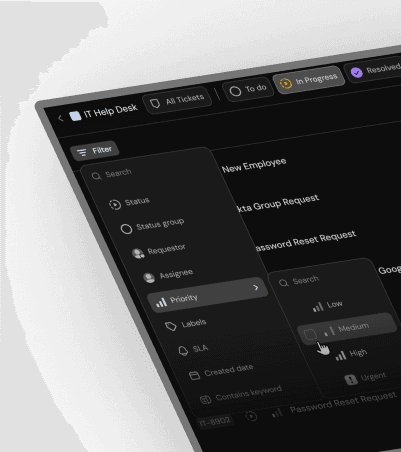
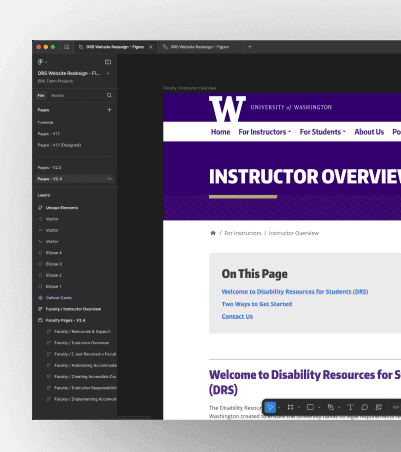
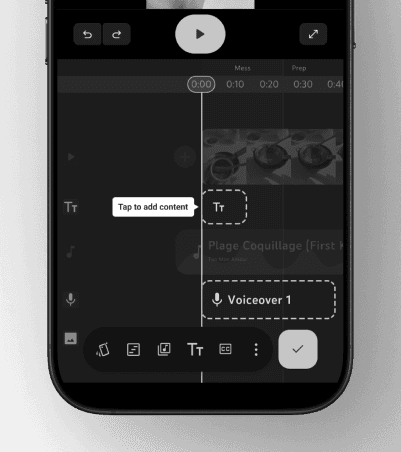
Syncscape
An iOS feature that bridges the digital divide by enabling interactive screen sharing, recording, and dynamic playback for remote tech support between older adults and their loved ones.
Overview
Project Type
- iOS Feature Design
- Concept Development
- Accessibility & Inclusion
My Contribution
- UX Research
- Interaction Design
- Prototyping
- Usability Testing
Tools
- Figma
- FigJam
- Google Docs
- Jitter
- Adobe After Effects
Timeline
- 10 weeks (Sep 2023 – Dec 2023)
Team
- 2 Product Designers
- 1 Researcher
- 1 Product Manager
Brief
Older adults with limited technological skills face significant challenges in confidently using digital products, and aren’t sure where to turn.
Result
An iOS operating system-level feature that enhances the video calling experience on iPhone and iPad by enabling screen sharing with real-time annotations and playback of recorded sessions, making digital learning smoother and more accessible.
My Impact
43 M
Potential reach in the U.S. alone, supporting people who face tech literacy barriers, especially older adults and their helpers.
60%
Drop in Tech-Related Frustration reported by participants in prototype testing, citing “intuitive interaction” design and “feeling in control” as reasons.
+42%
Confidence Boost after one guided session. Simulated testing (n=21) suggests older adults feel significantly more confident in repeating the same tech task.
Where I started
Like many of us, I live away from my mom. A regular interaction we have is when she needs help learning a new thing to do on her phone. It can get pretty charged. She struggles to keep up, feeling vulnerable. And I often repeat instructions until I grow frustrated. This experience isn’t unique to us.
What I did
I designed a two-part solution: Screen Sharing with Real-Time Annotations to mimic the in-person guidance older adults prefer, and Auto-Recorded Lessons saved to Photos for independent rewatching. I pivoted twice after usability testing revealed that discoverability and familiarity matter more than feature sophistication.
Where I concluded
Turns out, Apple (independently) agreed with our direction. They announced a similar screen share and annotation feature in iPadOS 18, validating our research-driven approach. The key insight: for less tech-savvy users, familiarity beats novelty every time.
Note
This is a passion project designed to foster digital inclusivity, without any affiliation to Apple. It’s built as an OS-level feature to minimize the learning curve by leveraging existing user mental models within the Apple ecosystem.
The Context
Ever found yourself in a conversation like this?
Sound familiar?
Like many of us, I live away from my mom. A regular routine interaction we have over calls is when she needs my help learning how to use a new app or feature on her phone.
As routine as this experience might be, it can get highly challenging. She struggles to keep up, feeling vulnerable and small. And honestly, I often repeat instructions until I grow weary and frustrated (not my proudest moments).
This experience isn’t unique to me and my mom.
Older adults who are being left behind in the tech takeover often feel alienated. They hesitate to approach their loved ones for repeated assistance because they don’t want to be a burden.
The real issue wasn’t complexity. It was confidence.
This wasn’t about building a better tutorial app. This was about recreating the warmth of in-person help, but remotely. And giving older adults the agency to learn independently.
The Problem
The digital divide isn’t about intelligence. It’s about confidence.
For many older adults, the complexity of digital interfaces can be intimidating and overwhelming. This leads to frustration, disengagement, and a sense of exclusion.
Despite the pervasive role of technology in daily life, current solutions often overlook the unique needs and capabilities of this demographic.
A few of the current solutions are themselves too complex and daunting for the less tech-savvy, and thus exacerbate the problem.
The Research
Preliminary research to establish the problem space
I had two research goals: first, confirm the problem exists at scale. Second, hear from people directly to understand where it hurts most.
Literature Review
I analyzed data from authoritative sources like Pew Research Center to understand the current state of technology adoption among older adults and the barriers they encounter.
42%
Of adults aged 65+ now own smartphones.
1/3
Of seniors do not use the internet at all.
50%
Lack home broadband access.
Key Takeaways from Literature Review
Tech Barriers Persist
Despite Growing Adoption
While smartphone ownership is increasing among seniors, attitudes of frustration and confusion with using technology persist among this population.
Lack of Confidence
The Real Barrier
Many seniors express low confidence using digital technology, with only a small minority reporting they feel “very confident” with electronic devices.
Onboarding Support Needed
Digital Readiness Gap
Older adults report often requiring assistance to set up or learn to use new devices, indicating a lack of digital readiness.
The literature confirmed the problem exists. But to design something that would help, I needed to hear the struggles in people’s own words.
Hearing from people directly to understand where it hurts most
I conducted user interviews and surveys using a multi-faceted approach. Why different methods for different users? Because the method should match the user.
Two User Groups, Two Approaches
Instructors (like me)
received surveys. They’re comfortable filling out online forms, and surveys were sufficient to collect the data I needed from them.
Learners (like my mom)
received in-depth, semi-structured interviews. This is our primary user whose pain points I wanted to understand in detail. Surveys wouldn’t capture the nuance.
What We Learned From Instructors
Over 50% of instructors found assisting with current methods challenging. The most preferred method was demonstrating directly on the device. But that’s hard to do when you’re not in the same room.
What We Learned From Learners
I sorted notes from surveys, interviews, and observational studies and categorized them to find commonalities.
Key Findings (Priority Ranked)
Interactive Learning
Older adults strongly prefer in-person, hands-on guidance when learning to use technology. They find traditional digital tutorials less effective and often face information overload.
“Learning in person provides immediate feedback, and I can ask questions in between.”
Need for Repetition
Forgetfulness and difficulty remembering steps are common issues. Features that support repetitive learning and easy recall are essential.
“If an app changes their screens, it’s difficult to find stuff that I used to do.”
Lack of Digital Readiness
A significant portion of older adults feel intimidated by technology. Many express the need for help in setting up and learning new devices.
Language and Trust Barriers
Language barriers and general mistrust of technology are prevalent. There’s a clear need for simple, jargon-free communication and trustworthy platforms.
“Technology is not designed for someone like me.”
A common theme emerged: the emotional component. Older adults often feel alienated and hesitant to ask for repeated help. Whatever solution we built needed to empower learners and mitigate that fear.
The Strategy
Narrowing scope to solve the core challenges
To focus on what mattered most, I picked the two highest-priority pain points and conceptualized what a solution would look like for each.
Pain Point
Interactive Learning
Keywords - In-person, Hands-on, Learner-Instructor Bond
How might we provide a hands-on guided learning experience that mimics in-person instruction?
Feature
Screen sharing with real-time annotations
Pain Point
Need for Repetition
Keywords - Forgetfulness, Repetition, Self-Reliance
How might we support effective learning and retention for older adults?
Feature
Auto-record lessons and save to Photos for rewatching later
Both features address the emotional component we discovered in research. Screen sharing maintains the human connection learners value. Auto-recording removes the guilt of asking the same question twice.
The Build
Translating insights into tangible design ideas
The initial ideation phase allowed for visual exploration of potential solutions. We explored everything from AR overlays to completely new apps before settling on an OS-level integration.
Why OS-level?
Because asking someone who struggles with technology to download and learn a new app defeats the purpose. By building into FaceTime and Photos, we leveraged systems they already know.
The Iteration
What users actually did with our designs (versus what we expected)
I iterated on different approaches to the user flow. These approaches were put through rigorous testing to gain perspective on usability.
Testing Environment
- Remote - to accommodate a diverse participant pool
- Think Out Loud - participants verbalized their actions and reactions
- Post-Test Interview - open-ended feedback on challenges and attitudes
Goals
- Are users able to complete the interactions to enter, use, and exit Syncscape successfully?
- What are users’ attitudes towards Syncscape?
Testing revealed two critical failures that led to major design pivots.
Unintuitive Access
Before
0%
Task completion rate
5 out of 5 participants failed to locate this critical feature without guidance.
The Challenge
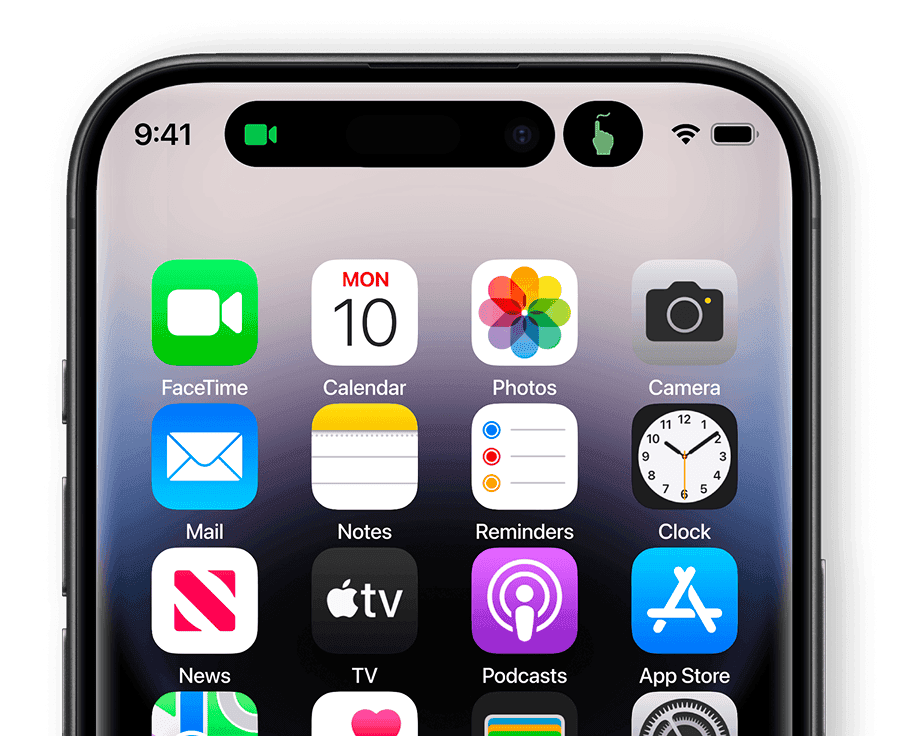
To initiate Syncscape, users had to swipe into a concealed Control Center. For our target users, concealed elements are a bigger hurdle than for average users.
After
Why This Approach?
I always see those little animations up there. It catches my eye.
The Fix
The Syncscape button now appears in Live Activities for easy, on-screen access during calls. This reduces confusion and frustration for vulnerable learners who might not think to check Control Center.
For our target users, discoverability trumps feature elegance. A prominent placement they can’t miss beats a “cleaner” design they’ll never find.
Tech-Savvy Interactions
Before
For the “revisit lessons” flow, I chose Live Activities’ expanded mode. It felt modern, native to iOS, and allowed dynamic switching between audio and video guidance.
80%
Task error rate
4 out of 5 participants made errors figuring out the touch and drag interactions.
The Challenge
To switch between modes, users had to perform novel interactions (touch, drag, expand). These gestures are second nature for tech-savvy users. For our audience? They were completely foreign.
After
User testing revealed that Picture-in-Picture was immediately intuitive to most users.
User Feedback
Oh, it’s just like watching YouTube while texting. I do that all the time!
The Fix
I switched to Picture-in-Picture for lesson playback. It’s a familiar interface element for our target users, making it highly usable and empowering them to revisit lessons feeling confident.
This was humbling. I’d designed what I thought was a more elegant solution using the latest iOS features. But for less tech-savvy users, familiarity beats novelty every time. The “older” pattern was actually the better pattern.
The Solution
An iOS feature that makes remote tech support actually work
Syncscape is an iOS operating system-level feature that enhances the video calling experience on iPhone and iPad devices.
It enables screen sharing and recording with annotations, and playback of recorded sessions.
Entering the Experience
Syncscape access becomes active during every video call, visible in the Live Activities pill at the top.
I designed the access to be through video calls based on learners’ self-reported need for connection and interaction with their instructors. This isn’t a cold tutorial. It’s a warm conversation with visual help.
Annotating in Real-Time
Instructors can view and annotate on a learner’s screen in real-time to guide them through actions.
Real-time annotation is the most effective way to cater to learners’ preference for personalized, hands-on learning in remote settings. The instructor draws a circle, the learner sees the circle. Simple.
Automatic Recording
The entire interaction is automatically recorded and saved to the learner’s Photos app, inside a dedicated Syncscape album.
Learners often require repeated help with the same actions. Auto-recording and saving lessons empowers them to take agency of their learning without the guilt of asking again.
Automatic Saving and Labelling
The next time a learner faces confusion with a previously guided action, they head straight to the Syncscape album.
Smartly-generated video titles help them quickly find the desired lesson. And Picture-in-Picture lets them watch while practising on their actual device.
The Validation
Apple thinks like us
After we completed our design, Apple announced a similar screen share and annotation feature in iPadOS 18.
This wasn’t disappointing. It was validating.
It confirmed that our research-driven approach had identified a real need that even Apple recognized was worth solving. The user pain points we uncovered weren’t edge cases. They were mainstream enough for Apple to prioritize.
Good research leads to good insights. And sometimes, those insights align with what the largest tech company in the world is also seeing. That’s not luck. That’s the process working.
The Reflection
Designing for users whose defining characteristic is being a digital novice
Key Challenge
Designing a digital solution for a target user whose key characteristic is being a digital novice. Every interaction pattern, every access point, every visual element had to be evaluated through the lens of “would my mom know what to do here?”
Core Learnings
- Iterative usability testing has increased importance for unique user needs.
- User-centric feedback requires diverse perspectives.
- Effective communication matters as much as visual design.
- Every design choice shapes perception.
Good research leads to good insights. And sometimes, those insights align with what the largest tech company in the world is also seeing. That’s not luck. That’s the process working.
Project Impact
Anticipated 35% increase in digital task initiation among older users, indicating growing tech confidence in older adults using Syncscape.
Areas for Improvement
While our research provided valuable insights, we need to expand our sample size to include a more diverse audience. This will help us better understand the varied challenges faced by older adults across different backgrounds and contexts.
Future Directions
- Feature Development - Continue developing each feature with a focus on seamless integration and user-friendly interactions.
- Comprehensive User Testing - Conduct extensive testing with a larger, diverse group to validate effectiveness and refine the experience.
- Community Partnerships - Explore partnerships with organizations that support older adults, promoting digital literacy and gathering real-world feedback on Syncscape’s impact.
See my other projects
If you liked this project, my mom thinks you might like these too!